Help
Find what went wrong, and fix it.
Search for the words on your screen, or pick your product. Setting up for the first time? Use the setup guides.
Just bought? Start here
Buying and downloading
After you pay, your download link arrives by email and opens a page with a button for each platform.
I paid, but the download email hasn't arrived
The link is emailed to the address you typed at checkout, not to a Gattaca account. A typo at checkout is the usual cause.
Fix it
- Search your inbox and spam folder for “Your CodonTerminal download”, “Your PromptDeck download” or “Your Gattaca bundle”.
- If Stripe emailed you a receipt, it went to the same address. That tells you which inbox to look in.
- Still nothing? Email gattaca.software@gmail.com with the address you meant to use and the date you paid, and we will send the link again.
If the page after checkout said “We're confirming it.”, the payment had not been confirmed to that page yet. The email is sent as soon as Stripe confirms it.
Words on screen
- Checkout complete.
- We're confirming it.
The download page says “This link has expired.”
Download links work for 30 days. The same message appears if part of the link was lost when it was copied.
Fix it
- Open the link by pressing the button in the original email, not from a copied address.
- If the email is more than 30 days old, email gattaca.software@gmail.com from the address you bought with and we will send a fresh link.
The app you already downloaded keeps working. Only the link expires.
Words on screen
- This link has expired.
It says “This link has hit its download limit.”
Each link works a set number of times, shown on the download page. Every press of a Download button counts, whether or not the download finished.
Fix it
- Look in your Downloads folder first. The file from an earlier attempt may already be there.
- If you need it again, email gattaca.software@gmail.com from the address you bought with and we will send a fresh link.
Words on screen
- This link has hit its download limit.
The download stalled or failed part-way
Pressing a Download button gives your browser a private address that only works for a few minutes. If the download is interrupted, start it again from the page your email link opened.
Fix it
- Go back to that page and refresh it.
- Press the Download button for your platform again.
- If it stalls again, switch browser or network before you use up the link's downloads.
I bought the bundle but only see one download
The bundle is one email, “Your Gattaca bundle”, with two buttons. Each button opens the download page for one product.
Fix it
- Press Download CodonTerminal in the email and pick your platform.
- Go back to the email and press Download PromptDeck.
I subscribed to Gattaca Plus but it isn't active
Plus belongs to the Gattaca account you were signed in to when you subscribed. Your account page shows whether it is active.
Fix it
- Open your account page and check you are signed in to the account you subscribed with.
- Wait a minute and refresh the page.
- If the page says the subscription needs payment attention, use the payment link in Stripe's email. Don't start a second subscription.
- Still not active? Email gattaca.software@gmail.com with your account email.
Words on screen
- Gattaca Plus is being activated
CodonTerminal
CodonTerminal runs the coding tools already on your computer. Most problems are a tool that isn't installed, isn't signed in, or is resting after a usage limit. CodonTerminal setup guide
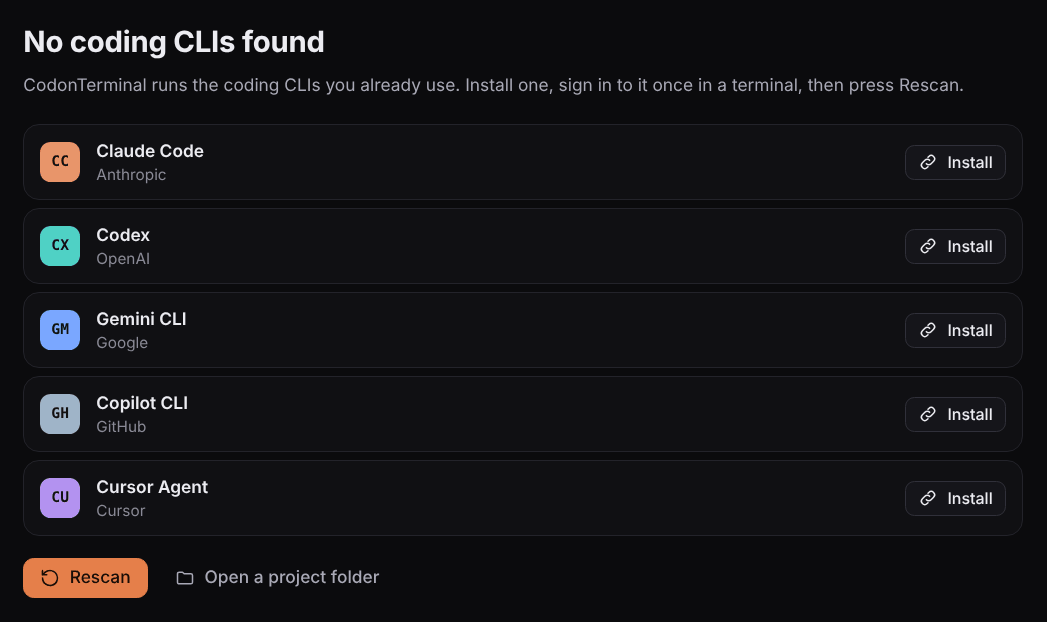
The first screen says “No coding CLIs found”
CodonTerminal has no AI of its own. It needs at least one coding tool installed and signed in on this computer.
Fix it
- Press Install next to a tool you have a plan for: Claude Code, Codex, Gemini CLI, Copilot CLI or Cursor Agent. It opens that tool's install page.
- Open a terminal and run the tool once (“claude”, “codex”, “gemini”, “copilot” or “cursor-agent”). The first run signs you in.
- Back in CodonTerminal, press Rescan.
- If it says “Still no coding CLIs found”, run the tool's command in a new terminal. If the terminal can't find it either, the install didn't finish: install it again, then press Rescan.
Words on screen
- No coding CLIs found
- Still no coding CLIs found
A tool I installed isn't offered, or shows “Not signed in”
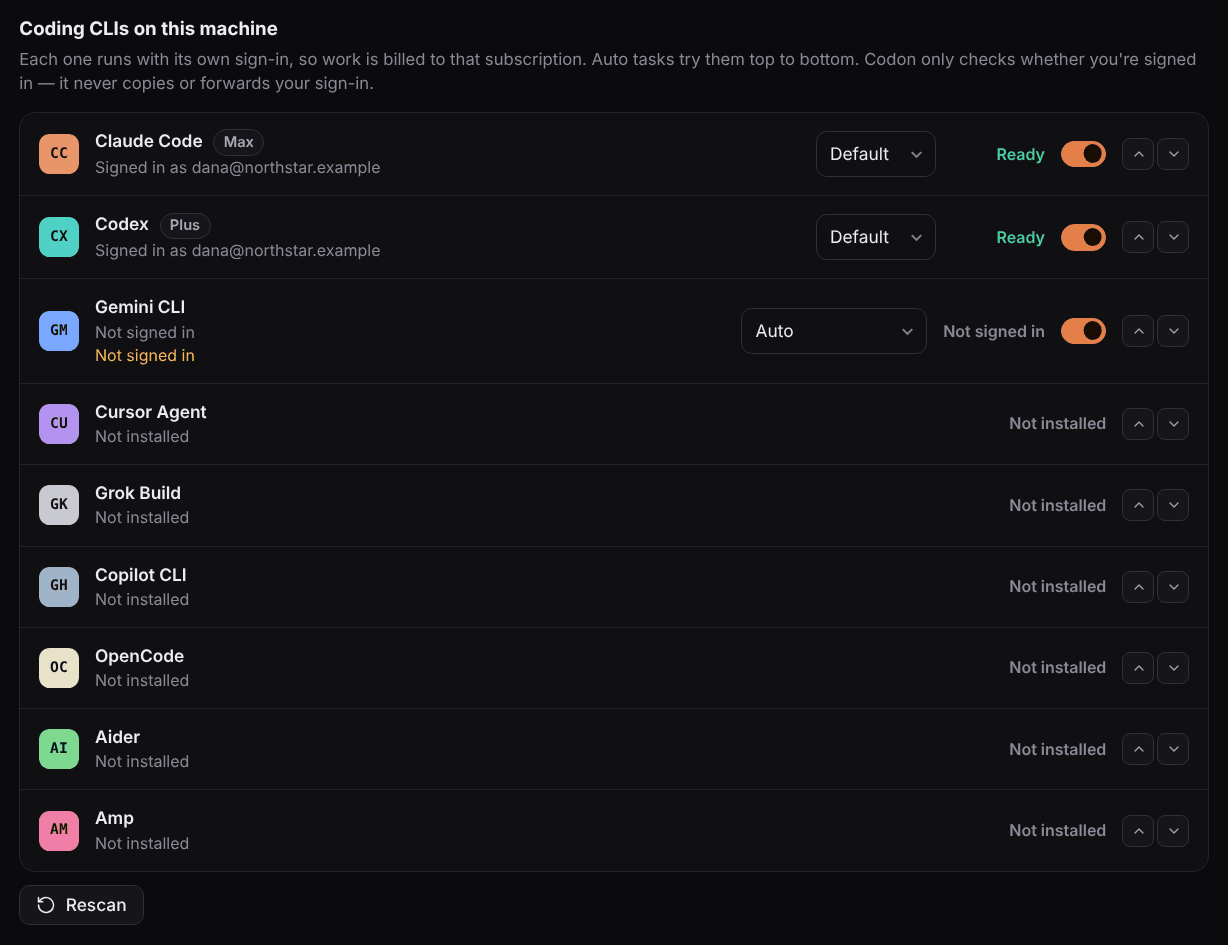
Settings → Subscriptions lists every coding tool on this computer as signed in, not signed in or not installed. CodonTerminal only checks whether you are signed in. It never copies or sends the sign-in.
Fix it
- Open Settings (Ctrl ,) and choose Subscriptions.
- Install any tool marked Not installed. For one marked Not signed in, run its command in a terminal and finish signing in.
- Press Rescan under the list.
- Check the switch on that tool's row is on. The queue skips a tool that is switched off.
A tool with a line in warning colour under its name can open in an agent pane but can't take queued tasks. The line says why.
Words on screen
- Not signed in
- Not installed
- Sign-in not confirmed yet
A task sits in Queued and never starts
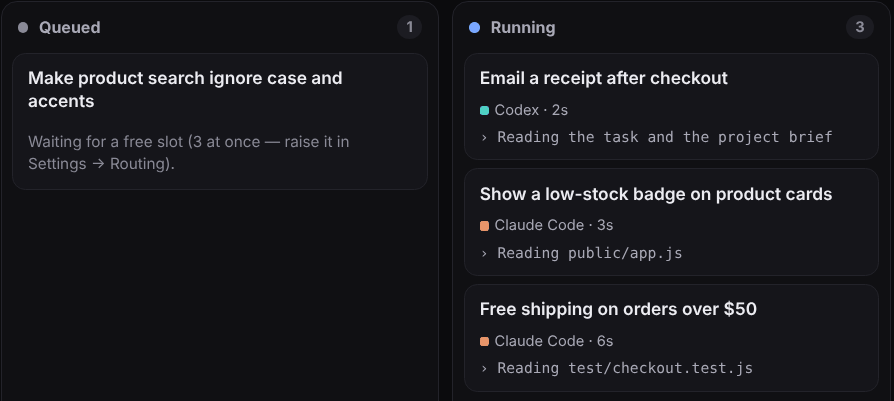
A queued task that can't start says why, in a line on its card and again when you open it. Match that line below.
Match what you see
- The button at the top of Tasks reads “Resume queue”
- The queue is paused. Press Resume queue.
- The task has a “Stopped” pill
- You stopped it, so the queue leaves it alone. Open the task and press Run now.
- “Waiting for a free slot”, “… is busy” or “All routes are busy.”
- Other tasks are using every slot, and this one starts when a run finishes. To run more at once, raise Parallel runs or Per subscription in Settings → Agents & routing.
- “Every subscription is resting.”
- Every plan has hit its usage limit. Wait for the time shown, or switch on Overflow to API models in Settings → Agents & routing. Overflow needs a model added in Settings → API models.
- “API overflow paused: today's cap … is reached.”
- Today's metered spend reached your Daily API cap. Raise it in Settings → Agents & routing, or wait until tomorrow.
- “No signed-in coding CLI can take tasks yet.”
- No tool that can run queued tasks is signed in. See the two items above.
Words on screen
- Waiting for a free slot
- Every subscription is resting.
- All routes are busy.
- No signed-in coding CLI can take tasks yet.
- API overflow paused
- Resume queue
An agent stopped and says it hit its usage limit
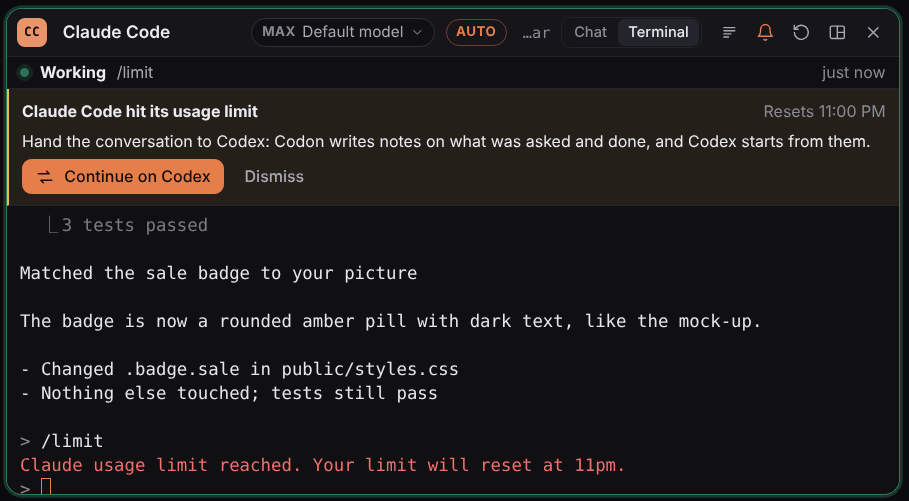
When a coding tool reports its own usage limit, CodonTerminal shows a banner under that pane's header with the reset time. If another signed-in tool has room, the banner offers to continue there.
Fix it
- Press Continue on and the name of the next tool. CodonTerminal writes notes on what was asked and done into .codon/handoffs/ in your project, and the pane restarts on that tool from those notes.
- If the banner says “No other signed-in CLI has room right now.”, wait for the reset time, or sign in to a second tool and press Rescan in Settings → Subscriptions.
- If the limit lifted early, open Settings → Subscriptions and press the “Resting to … · Clear” button on that tool's row.
Queued tasks need nothing from you. A usage limit isn't a failure: the task goes back in the queue for the next subscription and picks up on the same branch.
Words on screen
- hit its usage limit
- Continue on
- No other signed-in CLI has room right now.
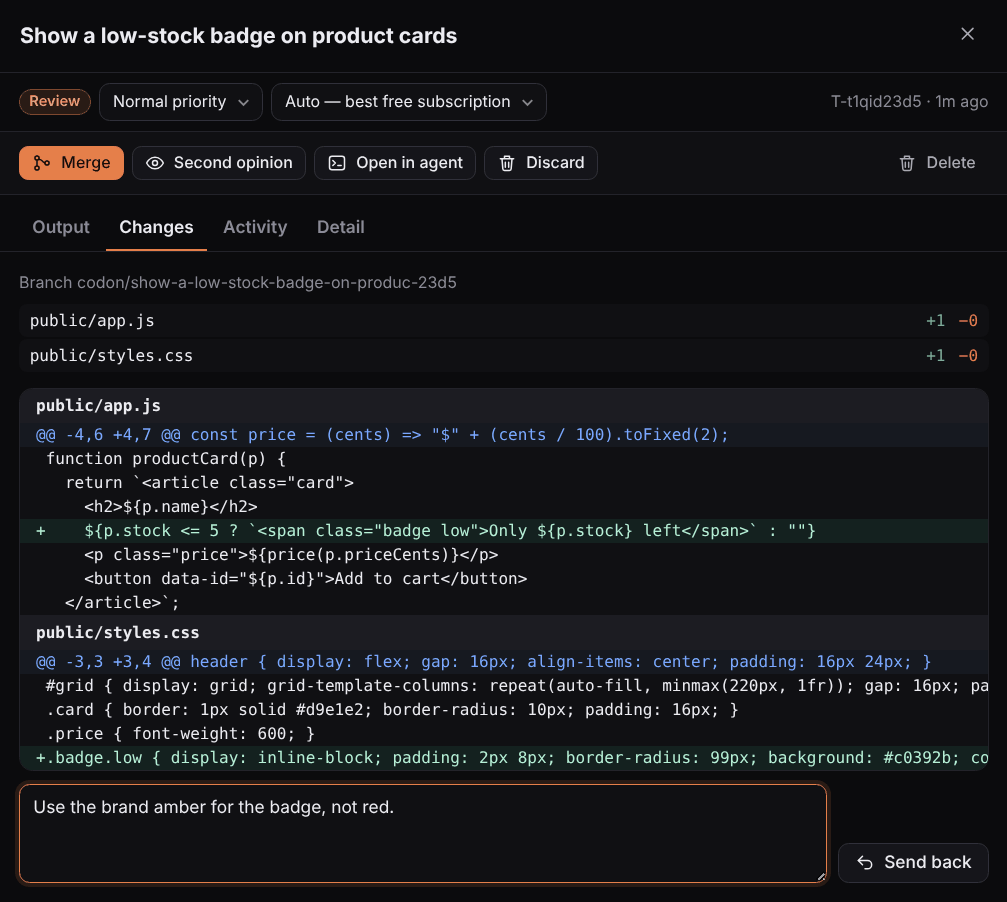
Merge is refused
CodonTerminal only merges when it can do so cleanly. When it can't, it backs the merge out, so nothing in your project has changed.
Match what you see
- “… conflicts. Send it back with a note, or resolve it in a pane.”
- Your project changed while the task ran, and both touched the same lines. Open the task in Review. Either type a note such as “bring this up to date with main and resolve the conflicts” and press Send back, or press Open in agent and resolve it by hand in the task's own folder. Then press Merge again.
- “Your working tree has uncommitted changes.”
- Commit your own edits, or put them aside with “git stash”, then press Merge again.
Words on screen
- conflicts. Send it back with a note, or resolve it in a pane.
- Your working tree has uncommitted changes. Commit or stash them, then merge.
A Codex task says it couldn't work in this folder (Windows)
Windows stopped Codex's sandbox from adding its permission to the project folder. That usually means the folder belongs to another account, for example because it was created from an administrator window.
Fix it
- Open the task and read its latest note. It names the folder and gives the exact command.
- Open PowerShell as administrator and run that command. It looks like this: icacls "<project folder>" /setowner "$env:USERNAME" /T /C
- Run the task on Codex again.
An Auto task doesn't wait for you: it is queued again for another tool. A task pinned to Codex fails with the fix in its notes.
Words on screen
- Codex couldn't start its Windows sandbox in this folder
- couldn't work in this folder
A finished task has no diff and no Merge button
A task gets its own branch only when the project is a git repository and worktrees are on. Otherwise it runs directly in your folder: the changes are already there, and the button reads Accept instead of Merge.
Fix it
- Open Settings → Agents & routing and check “Isolate tasks in git worktrees” is on.
- If the folder isn't a git repository yet, make it one (“git init”, then commit what's there) before you run the next task.
Words on screen
- This task ran in place (not a git repository), so there is no diff to show.
- in place
A task failed with “Stopped after … minutes.”
A run still going at the run time limit is stopped and marked failed. Its branch keeps the work done so far.
Fix it
- Open Settings → Agents & routing and raise “Run time limit (minutes)”.
- Open the task and press Run now, or split it into smaller tasks.
Words on screen
- Stopped after
Tasks that came with a project I cloned aren't running
A folder can arrive with queued tasks or routines someone else set up. CodonTerminal holds them and asks before running any.
Fix it
- When CodonTerminal asks whether to run them, choose Allow if you trust where the folder came from, or Keep them held if you don't.
- A held task can still be run by hand: open it and press Run now.
Words on screen
- came with its own work
- Keep them held
The AppImage won't start on Ubuntu
Ubuntu 23.10 and later block the sandbox an AppImage needs. The .deb doesn't have this problem.
Fix it
- Open the download page from your purchase email again and download the .deb. One purchase covers every download.
- Install the .deb. It suits Ubuntu, Debian, Mint and Pop!_OS.
- To keep the AppImage instead, start it from a terminal with --no-sandbox after its name.
I click the mic and nothing is typed
Dictation writes into Compose, the message box under your agents, so it needs an agent open. The label beside the mic says what state voice is in.
Match what you see
- “Open an agent first.”
- Start an agent (Ctrl Shift T), then click the mic. Your words appear in Compose at each pause, and Enter sends them.
- “voice starting…”
- Give it a moment and click the mic again. The first time you use the mic the speech model downloads, about 2.3 GB, and is kept for next time.
- “Voice isn't running, so there's nothing to dictate to.”
- Close CodonTerminal completely and open it again.
- “microphone blocked”
- Open Windows Settings → Privacy & security → Microphone and allow desktop apps to use the microphone.
- “no microphone”
- Plug a microphone in, or choose one in Windows sound settings, then try again.
- “Voice isn't included in this build yet.” (Linux)
- Voice is on Windows only for now. On Linux, type into Compose.
Speech recognition runs on your computer. What you say isn't sent to a speech service.
Words on screen
- Open an agent first.
- Voice isn't running, so there's nothing to dictate to.
- voice starting
- microphone blocked
- no microphone
- Voice isn't included in this build yet. It ships with CodonTerminal for Windows.
I don't get told when an agent finishes
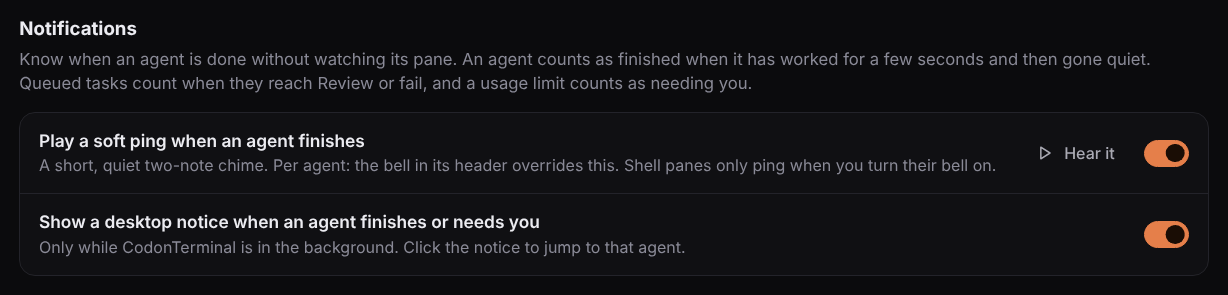
There are two signals, both in Settings → Notifications. The desktop notice only shows while CodonTerminal is in the background, and the ping is off until you turn it on.
Fix it
- Open Settings → Notifications.
- Check “Show a desktop notice when an agent finishes or needs you” is on.
- For a sound, turn on “Play a soft ping when an agent finishes”. Press Hear it to test your speakers.
- The bell in an agent's header overrides the setting for that agent. Shell panes only ping when you turn their bell on.
Plan or Second opinion asks for Gattaca Plus, or my key is refused
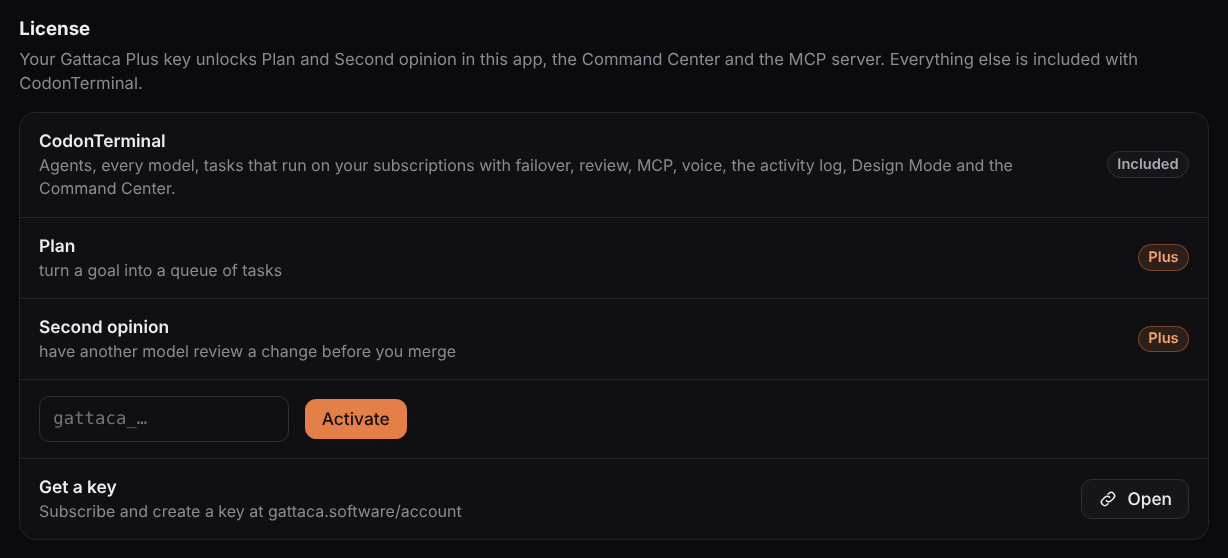
Plan and Second opinion come with Gattaca Plus and need your Gattaca key in Settings → License. Everything else is part of the one-time purchase. The Status row in License says what was wrong with the last check.
Match what you see
- You have Plus but haven't added a key
- Create a key on your account page, paste it into Settings → License and press Activate.
- “That key isn't valid.”
- Paste the key again with nothing before or after it, and press Activate. The account page shows a key only once, when it is created. If you no longer have it, create a new one.
- “That key was revoked.”
- Create a new key on your account page and press Replace key.
- “Your Gattaca Plus subscription has ended.” or “isn't active.”
- Check billing on your account page. Once Plus is active again, press Check now.
- “Couldn't reach gattaca.software”
- You're offline, or the site couldn't be reached. Plus keeps working offline for a week after the last good check. Press Check now when you're back online.
Words on screen
- Second opinion is part of Gattaca Plus. Add your Gattaca key in Settings → License.
- That key isn't valid. Check it at gattaca.software/account.
- That key was revoked. Create a new one at gattaca.software/account.
- Your Gattaca Plus subscription has ended.
- Couldn't reach gattaca.software
The Command Center says my session ended or the link expired
The Command Center is served by the app on your own computer, and you get in through a one-time link the app opens. The link expires after a minute, so a bookmark or a copied address won't work.
Fix it
- Make sure CodonTerminal is open.
- Press Command (the globe) in the left rail. A fresh link opens in your browser.
Words on screen
- Your session ended. Open the Command Center from CodonTerminal again.
- This link has expired.
PromptDeck
PromptDeck runs on your computer and sends each run to the AI you connected. Most problems are a sign-in that expired, a key the provider refused, or an automation waiting for you. PromptDeck setup guide
Windows shows a blue SmartScreen warning when I open it
Windows can show this the first time you run a file it hasn't seen often. PromptDeck is code-signed, and the publisher shown is Chris Ross.
Fix it
- On the warning, choose More info.
- Check the publisher reads Chris Ross, then choose Run anyway.
- Give the first launch a moment. It unpacks the app, which takes about 300 MB of space.
If the publisher is anything else, don't run it. Download it again from your purchase email.
Words on screen
- Windows protected your PC
It says Claude Code is not installed, or my Claude sign-in has expired
Running on your Claude Pro or Max plan goes through Claude Code on your own computer. If Claude Code is missing or signed out, those runs fail.
Fix it
- Open Settings (the gear). In Models & Billing, find “Claude plan via Claude Code”.
- If it says Claude Code isn't installed, install it from claude.com/claude-code, then press Refresh.
- If it says not signed in or expired, press Connect Claude or Sign in again. A terminal window opens and sign-in finishes in your browser.
- Run the app again.
Words on screen
- Claude Code is not installed.
- Claude Code is installed but not signed in.
- has expired.
- Your Claude sign-in may have expired
- Claude Code exited
It says Codex is not installed or not signed in
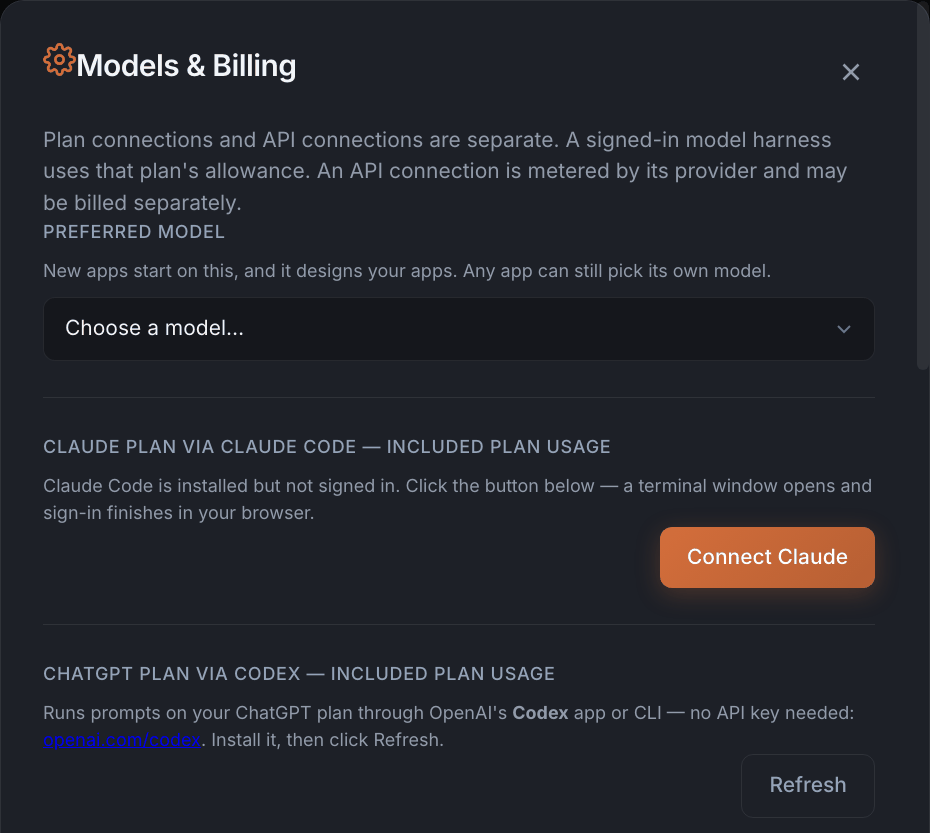
Running on your ChatGPT plan goes through OpenAI's Codex, the desktop app or the CLI, on your own computer. It has to be installed and signed in with your ChatGPT account.
Fix it
- Open Settings (the gear). In Models & Billing, find “ChatGPT plan via Codex”.
- If Codex isn't installed, install it from openai.com/codex, then press Refresh.
- Press Sign in with ChatGPT. Sign-in finishes in your browser.
If that row says Codex is signed in with an OpenAI API key, its runs are billed per token to that OpenAI account, not to your ChatGPT plan.
Words on screen
- Codex is not signed in
- The Codex CLI is not installed.
- Codex is installed but not signed in.
My Anthropic API key wasn't accepted
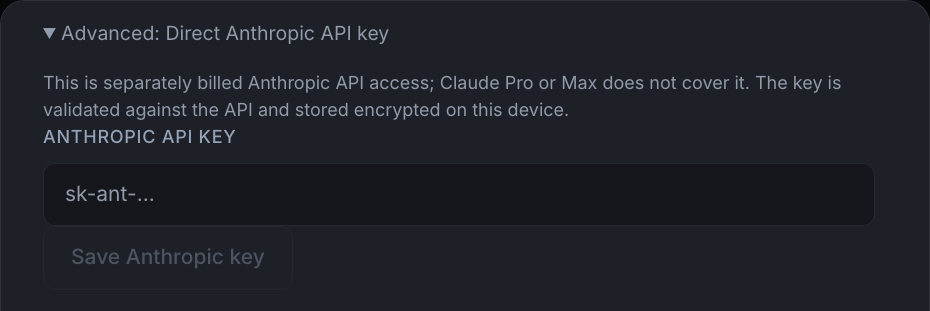
PromptDeck checks a key with Anthropic before saving it and shows Anthropic's own reason if it is refused. An API key is billed separately: a Claude Pro or Max plan doesn't include one.
Fix it
- On a Claude Pro or Max plan you don't need a key. Use the Claude plan route instead (the item above).
- Otherwise open Models & Billing and expand “Advanced: Direct Anthropic API key”.
- Paste the whole key, with no spaces before or after. It starts with sk-ant-.
- Still refused? Create a new key in the Anthropic console and try that one.
Words on screen
- Anthropic key not saved
- Could not validate that key.
- No Anthropic API key configured. Add one in Settings.
My automation didn't run
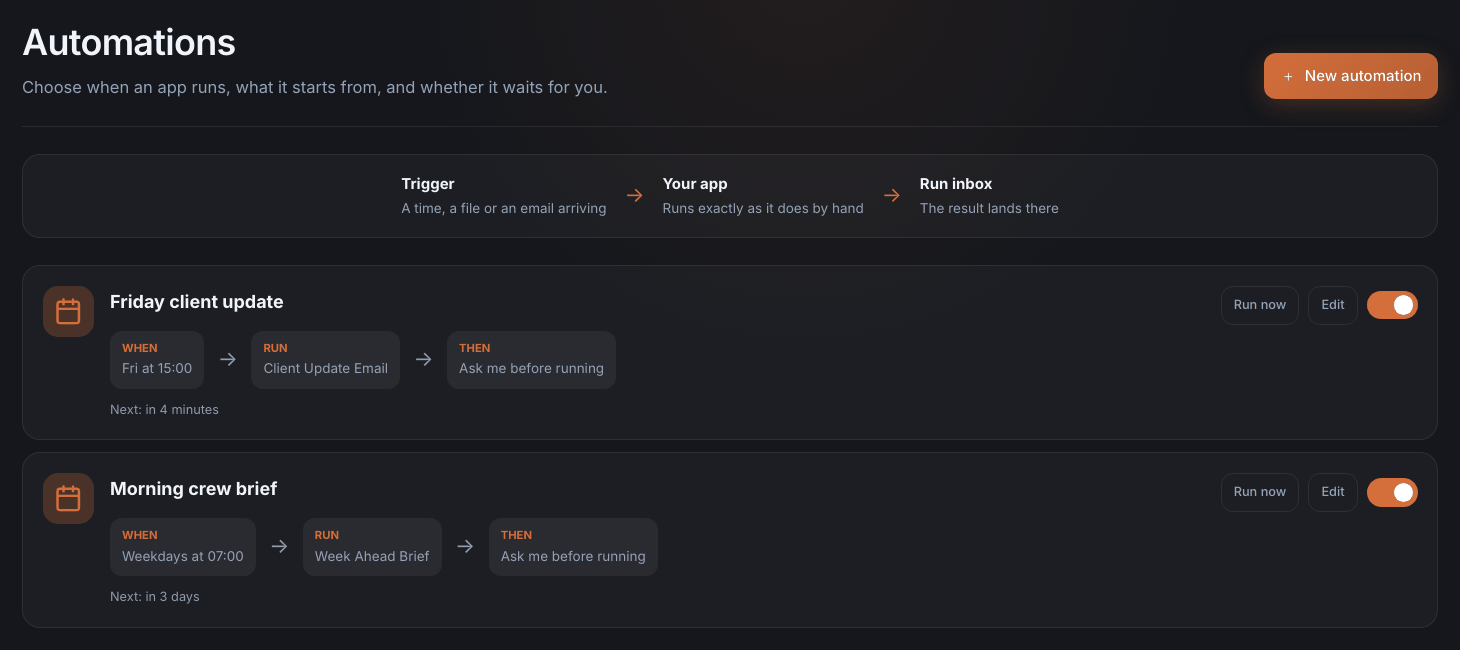
Automations run on this computer, and only while PromptDeck is open. Each automation's card has a “Next:” line that says what it is waiting for.
Match what you see
- The card says “Ask me before running”
- It did trigger, and it is waiting for you. Open Run inbox, find the item marked Needs you and press Approve and run, or Decline to skip it. To stop being asked, press Edit on the automation and untick “Ask me before it runs”.
- PromptDeck was closed at the scheduled time
- It runs once when PromptDeck is next opened, not once for every time it missed. Leave PromptDeck open if the schedule matters.
- “Next: Paused”
- Switch it back on with the toggle at the right of the card.
- “Next: Waiting for a file”
- Nothing new has landed in the folder it watches. Press Edit and check the folder. With “Run once for every new file” ticked, files that were already there are left alone.
- “The app this automation runs has been deleted.”
- Press Edit and choose an app that still exists.
- Run now says “This automation runs on each new email.”
- An email automation can't be run by hand. Send yourself an email that matches its sender and subject filters.
For a schedule or folder automation, Run now on the card runs it once straight away. That is the quickest way to tell a schedule problem from an app problem.
Words on screen
- Paused
- Waiting for a file
- Waiting for email
- Ask me before running
- Needs you
- Approve and run
- The app this automation runs has been deleted.
I can't connect my email account
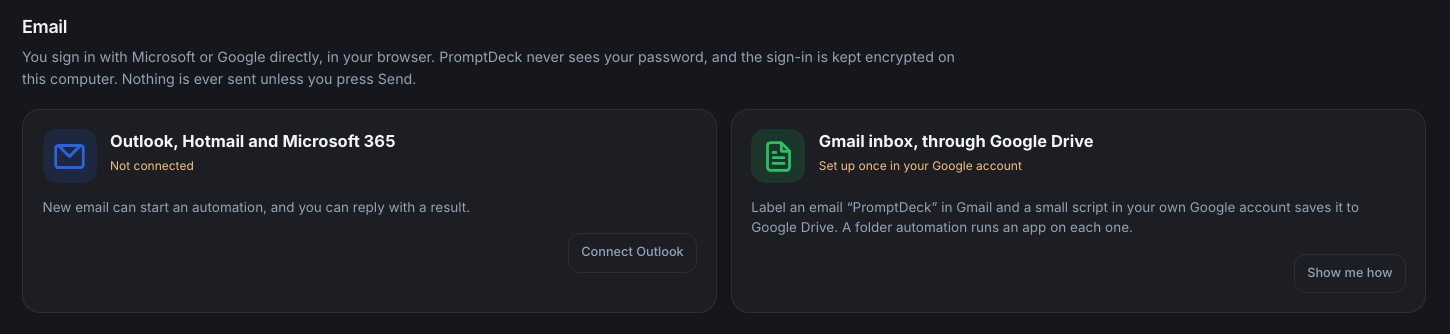
You sign in with Microsoft in your browser, and PromptDeck waits up to five minutes for you to finish. It never sees your password. Outlook, Hotmail and Microsoft 365 accounts can be connected today.
Match what you see
- “Sign-in timed out.” or “This sign-in link is out of date.”
- In PromptDeck, open Connectors and press Connect Outlook again. Finish in the browser tab that opens this time.
- “Sign-in was cancelled or permission was not granted.”
- Press Connect Outlook again and accept the permissions Microsoft lists.
- Microsoft says “Need admin approval”
- Your work or school account only allows apps its administrator has approved. Ask your IT administrator to approve PromptDeck, or connect a personal Outlook or Hotmail account.
- There is no “Gmail: sending” card, or Google says “Access blocked”
- Sending from a Gmail address isn't open to everyone yet, because Google hasn't approved PromptDeck for it. Send from an Outlook, Hotmail or Microsoft 365 account for now. To bring Gmail in, see “I can't make an automation run on new Gmail” below.
Words on screen
- Sign-in timed out. Try Connect again.
- Sign-in was cancelled or permission was not granted.
- This sign-in link is out of date.
- Gmail: sending
- Need admin approval
- Access blocked
The Run inbox says it could not check my inbox
The saved sign-in for that email account has expired or been withdrawn. Automations that run on new email wait until it is fixed. They don't skip mail.
Fix it
- Open Connectors and find that account's card under Email.
- Press Add another account and sign in with the same address.
- PromptDeck recognises the address and renews the sign-in, so your automations keep pointing at the same account.
Words on screen
- Could not check
- Automations that run on new email are waiting until this is fixed.
- has expired. Sign in to
I can't make an automation run on new Gmail
PromptDeck doesn't read a Gmail inbox. “When an email arrives” works with Outlook, Hotmail and Microsoft 365. For Gmail there is a route through Google Drive that you set up once, in your own Google account.
Fix it
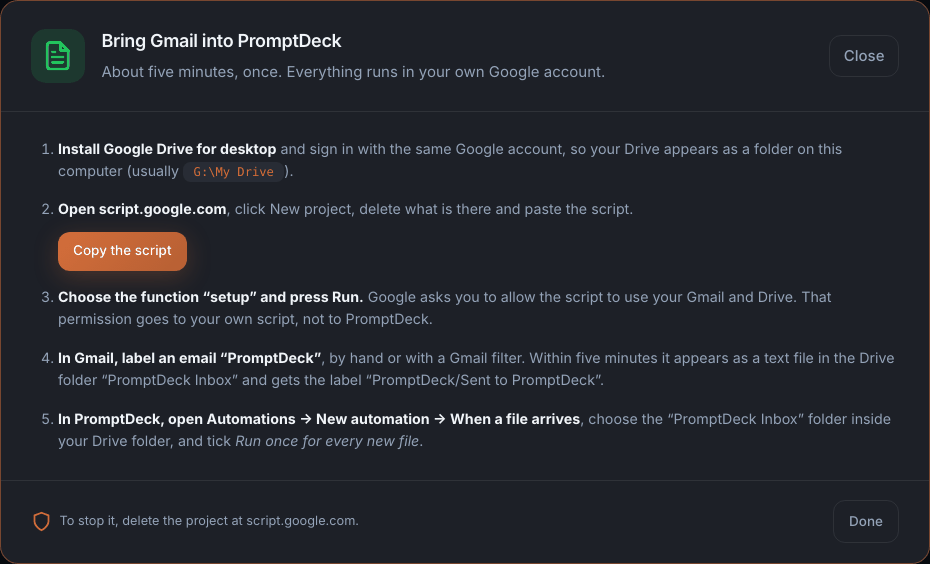
- Open Connectors, find “Gmail inbox, through Google Drive” and press Show me how.
- Follow the five steps in that window (pictured). They take about five minutes.
- From then on, label an email “PromptDeck” in Gmail. Within five minutes it is a text file in your Drive folder “PromptDeck Inbox”, and your automation runs on it.
If labelled mail isn't arriving: check the label is spelled exactly “PromptDeck”, that Google Drive for desktop has finished syncing, and that the automation watches the “PromptDeck Inbox” folder with “Run once for every new file” ticked.
Words on screen
- Gmail inbox, through Google Drive
- Bring Gmail into PromptDeck
I'm not sure my email was sent
PromptDeck only sends when you press Send in the confirmation window, and a sent message is in that account's own Sent folder. If the mail server didn't answer, PromptDeck can't tell whether it went.
Fix it
- Look for the message in that account's Sent folder.
- If it is there, you're done. If not, press Send again.
- If it says “Outlook did not send it”, the reason from the mail service follows. An expired sign-in is fixed in Connectors (the item two above).
Words on screen
- No answer from the mail server. It may still have been sent: check your Sent folder before trying again.
- Outlook did not send it
Connecting PromptDeck to my Gattaca account fails
PromptDeck shows a short code and opens gattaca.software in your browser, where you approve it while signed in. Ownership is matched by email, so your Gattaca account has to use the address you bought PromptDeck with.
Match what you see
- “The code expired.” or “That code was already used.”
- Press Connect again and approve the new code straight away.
- “The connection was declined in the browser.”
- Press Connect again and choose to approve it on the page that opens.
- “No PromptDeck purchase found on this email”
- You are signed in to gattaca.software with a different address from the one you paid with. Sign in with the purchase address and connect again.
- “Couldn't reach gattaca.software.”
- Check your internet connection and try again. Everything else in PromptDeck works without the account.
Words on screen
- The code expired. Press Connect to get a new one.
- That code was already used. Press Connect to get a new one.
- The connection was declined in the browser.
- No PromptDeck purchase found on this email
- Couldn't reach gattaca.software. Check your connection and try again.
Send to phone doesn't work
Send to phone needs PromptDeck connected to your Gattaca account, and works for mini apps you have kept. PromptDeck includes 3 phone apps. Gattaca Plus raises that to 50.
Match what you see
- “Connect your Gattaca account first.”
- Open Settings (the gear) and, under Gattaca account, press Connect Gattaca account. Approve the code in your browser.
- “This app is too large to send to a phone”
- The app is over the phone limit of about 2 MB. Export it as a standalone .html file instead and send that.
- You have used all your phone apps
- Remove one in the Send to phone window or on your account page to free a slot. Its link stops working straight away.
Words on screen
- Connect your Gattaca account first.
- This app is too large to send to a phone (the limit is about 2 MB).
PasswordCoded
PasswordCoded encrypts your vault on your device with a master password only you know. That keeps it private, and it is also why some things can't be undone for you. PasswordCoded setup guide
I forgot my master password
Gattaca never receives your master password, so support cannot reset it or open your vault. Resetting your Gattaca account password does not change it either.
Fix it
- Try the passwords you might have used. Check your printed recovery sheet: it has a line where you may have written it.
- An encrypted backup only helps if you know the password it was made with.
- If the password is gone, erase the local vault and start again. The old encrypted data stays unreadable.
Once you are back in, export an encrypted backup and keep a copy away from the device.
I installed it on my iPhone and the vault is empty
On iPhone and iPad, the home-screen app keeps its own storage, separate from Safari. A vault you made in a Safari tab isn't in the installed app. Android and computers share storage, so this doesn't happen there.
Fix it
- Open PasswordCoded from its home-screen icon.
- With Gattaca Plus: open Sync & account, continue with Gattaca, and download your encrypted vault. Unlock it with the same master password.
- Without Plus: restore your encrypted backup into the installed app.
My vault isn't on my second device
Sync across devices is part of Gattaca Plus and needs the same Gattaca account on each device. The vault is unlocked by your master password, not your account password.
Fix it
- On the second device, open PasswordCoded and go to Sync & account.
- Continue with Gattaca and sign in with the same account.
- Download the encrypted vault and unlock it with your master password.
The API key on your account page is for CodonTerminal. It is never pasted into PasswordCoded.
My changes stopped syncing
Uploading changes pauses when Gattaca Plus ends. Your local vault and encrypted exports keep working, and the encrypted copy already stored can still be downloaded or deleted.
Fix it
- Open your Gattaca account page and check Gattaca Plus is active.
- If it says the subscription needs payment attention, use the payment link in Stripe's email.
- Syncing resumes once Plus is active again.
Smart Import refused my CSV file
Smart Import expects field names across the top row and one account per row beneath. It won't guess at a file full of passwords: anything it isn't sure about is refused, with the expected layout spelled out.
Fix it
- Press Download CSV template to get a file in the right shape.
- Export from your old password manager as CSV again, or copy your entries into the template.
- Import the new file. Every row is shown for review first, and nothing is written to the vault until you have seen it.
Delete the CSV afterwards. It is a plain-text copy of your passwords.
Codon MCP
Codon MCP gives your coding tools one shared task queue. It coordinates work. CodonTerminal is what runs it. Codon MCP setup guide
The Codon server doesn't show as connected in my MCP client
Your client launches Codon as a command, with npx. That needs Node.js 20 or newer, and the client has to be restarted after you add the server.
Fix it
- Run “node --version” in a terminal. If it is older than 20, or missing, install a current Node.js.
- On Windows, if the client can't launch npx directly, put “cmd /c” in front, for example: -- cmd /c npx -y codon-mcp
- Restart the client and check the server shows as connected in a new chat.
- If you have CodonTerminal, skip npm: Settings → Connect tools (MCP) has ready-to-paste commands that use the copy bundled with the app.
A tool answers “Which project?”
Each tool works on one project folder. If the call doesn't name one, and Codon can't tell it from your client's open folders or the current folder, it asks rather than guessing.
Fix it
- Ask your agent to pass the project's full folder path as workspace.
- Or set CODON_WORKSPACE to that path in the server's environment in your MCP configuration, and restart the client.
- If it says the workspace folder does not exist, check the path for typos.
Words on screen
- Which project?
- Workspace folder does not exist
My agent queued a task and nothing ran
Codon MCP doesn't do the work itself. codon_task_add only writes a task to the queue. The task runs when CodonTerminal is open with its queue running, or when an agent claims it.
Fix it
- Ask your agent to call codon_status. It says whether CodonTerminal is running and whether the queue is paused.
- Open CodonTerminal on that project. Work queued while it was closed is waiting there.
- If the queue is paused, press Resume queue in the Tasks view.
- Or have an agent take the task in its own session with codon_task_claim.
Words on screen
- CodonTerminal is not running
codon_plan or codon_run refuses to run
codon_run needs CodonTerminal open, because the app does the work. codon_plan needs the app open and Gattaca Plus. The other eight tools need neither.
Fix it
- Open CodonTerminal.
- For codon_plan, add your Gattaca key in CodonTerminal under Settings → License. The MCP server itself never needs the key.
- Call the tool again.